

Scheduling Experiment Runs
Using the Experiment Scheduler
If you want to run experiments in the future once or with some kind of regular cadence, you can set that up with our scheduler. You can do this manually or using automation via the Steadybit API or CLI.
In this lesson, we’ll quickly walk through some of the decisions you’ll need to make when creating a scheduled experiment.
Setting the Schedule
Let’s start in the Editor for the experiment you want to schedule. In the top right corner, select “Properties” → “Schedule Run”. Anyone with edit permissions can create a schedule.
Schedule Experiments to Run Only Once
If you only want to run your experiment once, you can select “Only Once” in the “Run this Experiment” section. Mark on the calendar the date and time you want to run the experiment.
By default, this calendar uses the timezone you have configured for your Steadybit profile. When viewing other schedules set up by other users, you will seem them translated to your timezone.
Schedule Experiments to Run Recurrently
If you want to run experiments on a regular schedule, you will need to write your schedule as a Crontab expression, using the Quartz cron trigger syntax.
You’ll have 7 fields you can enter values into: Second, Minute, Hour, Day (Month), Month, Day (Week), Year
For example:
- 0 15 10 ? * * = 10:15am every day
- 0 15 10 * * ? 2025 = 10:15am every day during the year 2025
- 0 15 10 ? * MON-FRI = 10:15am every Monday, Tuesday, Wednesday, Thursday, and Friday
You can generate this expression quickly with an online Crontab converter or LLM.
You can specify a time zone to use for this schedule. You will see a preview of the schedule in the selected time zone, and also converted into your profile’s time zone.
Overriding Variables
If you want, you can override variables for experiment runs on a specific schedule.
For example, if you specify in your experiment design that you want to take out a certain Availability Zone, you could override the variable and input a different availability zone.
With this functionality, you could use schedules to test a wide variety of scenarios stemming off of one experiment design with overwritten variables.
Enabling Parallel Runs
Depending on your experiments and testing environments, you may only want one experiment running at a time. If you want to make sure this is the case, you can make sure that “Run Experiments in Parallel” is toggled off.
If you are ok with multiple experiments running at the same time, you can enable parallel runs.
Activating Your Schedule
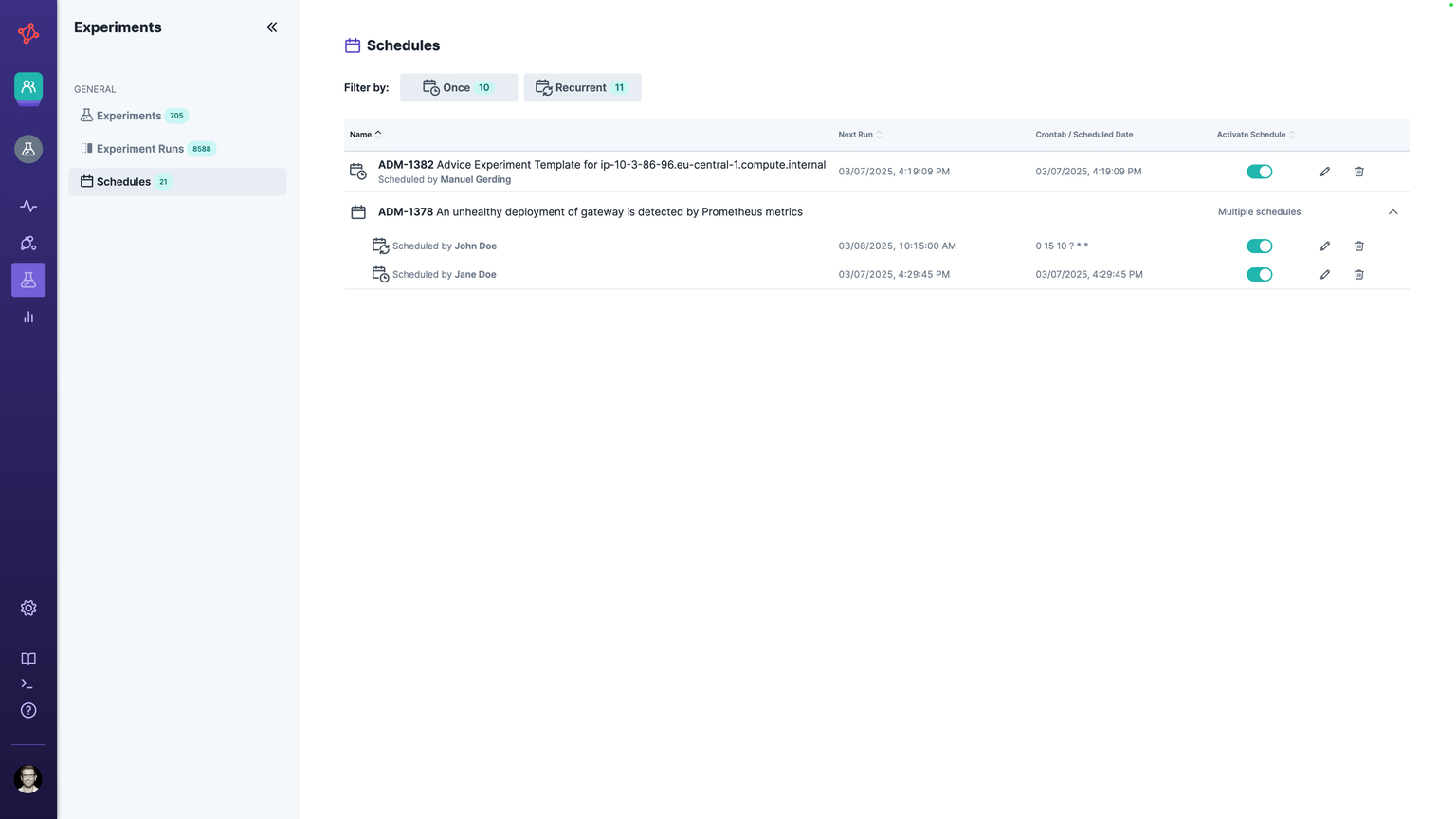
When you are happy with your scheduling settings, you can toggle “Activate”. To view your scheduled runs, you can view them all in the “Schedules” page of the “Experiments” tab.
Lesson Summary
In this lesson, we shared how you can set up experiments to run in the future, once or on a schedule. You have the full flexibility to run reliability tests on your terms.